> ## Documentation Index
> Fetch the complete documentation index at: https://dripart-docs-recommend-assets-api.mintlify.site/llms.txt
> Use this file to discover all available pages before exploring further.
# ComfyUI 应用多个 LoRA 示例
> 本篇将引导你了解并完成在 ComfyUI 中同时应用多个 LoRA 模型
在 [ComfyUI LoRA 使用示例](/zh/tutorials/basic/lora) 中,我们介绍了如何在 ComfyUI 中加载并使用 LoRA 模型,也提及了该节点支持链式连接。
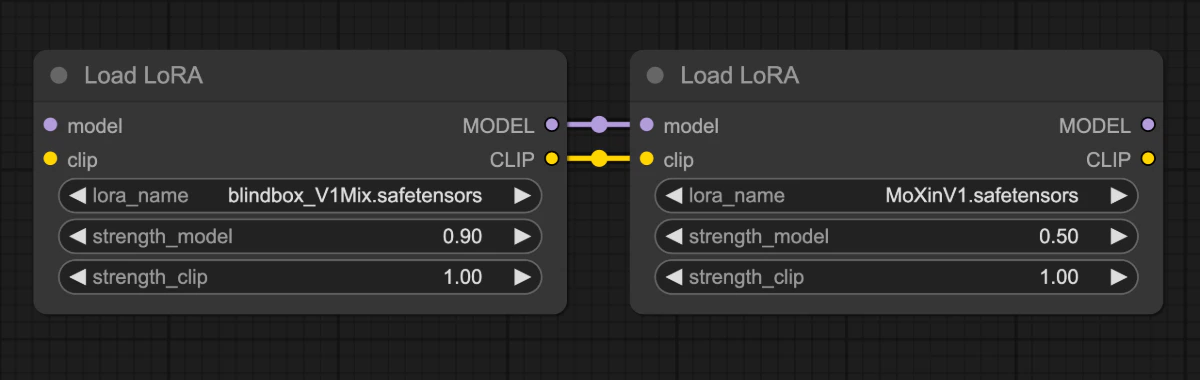 在本篇中我们将使用链式连接`Load LoRA`节点的方式来同时使用多个 LoRA 模型,在本示例中,我们将使用 [blindbox\_V1Mix](https://civitai.com/models/25995?modelVersionId=32988) 和 [MoXinV1](https://civitai.com/models/12597?modelVersionId=14856) 两个 LoRA 模型。
下图是这两个 LoRA 模型在同样参数下单独使用的效果
在本篇中我们将使用链式连接`Load LoRA`节点的方式来同时使用多个 LoRA 模型,在本示例中,我们将使用 [blindbox\_V1Mix](https://civitai.com/models/25995?modelVersionId=32988) 和 [MoXinV1](https://civitai.com/models/12597?modelVersionId=14856) 两个 LoRA 模型。
下图是这两个 LoRA 模型在同样参数下单独使用的效果
 但通过多个 LoRA 模型链式连接后,我们可以在最终的效果中看到两种风格融合在一起的效果
 ## 相关模型安装
请下载 [dreamshaper\_8.safetensors](https://civitai.com/api/download/models/128713?type=Model\&format=SafeTensor\&size=pruned\&fp=fp16) 并保存至 `ComfyUI/models/checkpoints` 目录
请下载 [blindbox\_V1Mix.safetensors](https://civitai.com/api/download/models/32988?type=Model\&format=SafeTensor\&size=full\&fp=fp16) 并保存至 `ComfyUI/models/loras` 目录
请下载 [MoXinV1.safetensors](https://civitai.com/api/download/models/14856?type=Model\&format=SafeTensor\&size=full\&fp=fp16) 并保存至 `ComfyUI/models/loras` 目录
## 多 LoRA 模型应用示例工作流
请下载下面的工作流图片,并拖入 ComfyUI 以加载工作流

Metadata 中包含工作流 json 的图片可直接拖入 ComfyUI 或使用菜单 `Workflows` -> `Open(ctrl+o)` 来加载对应的工作流。
## 按步骤完成工作流的运行
请参照下图步骤完成,确保工作流能够正常运行
## 相关模型安装
请下载 [dreamshaper\_8.safetensors](https://civitai.com/api/download/models/128713?type=Model\&format=SafeTensor\&size=pruned\&fp=fp16) 并保存至 `ComfyUI/models/checkpoints` 目录
请下载 [blindbox\_V1Mix.safetensors](https://civitai.com/api/download/models/32988?type=Model\&format=SafeTensor\&size=full\&fp=fp16) 并保存至 `ComfyUI/models/loras` 目录
请下载 [MoXinV1.safetensors](https://civitai.com/api/download/models/14856?type=Model\&format=SafeTensor\&size=full\&fp=fp16) 并保存至 `ComfyUI/models/loras` 目录
## 多 LoRA 模型应用示例工作流
请下载下面的工作流图片,并拖入 ComfyUI 以加载工作流

Metadata 中包含工作流 json 的图片可直接拖入 ComfyUI 或使用菜单 `Workflows` -> `Open(ctrl+o)` 来加载对应的工作流。
## 按步骤完成工作流的运行
请参照下图步骤完成,确保工作流能够正常运行
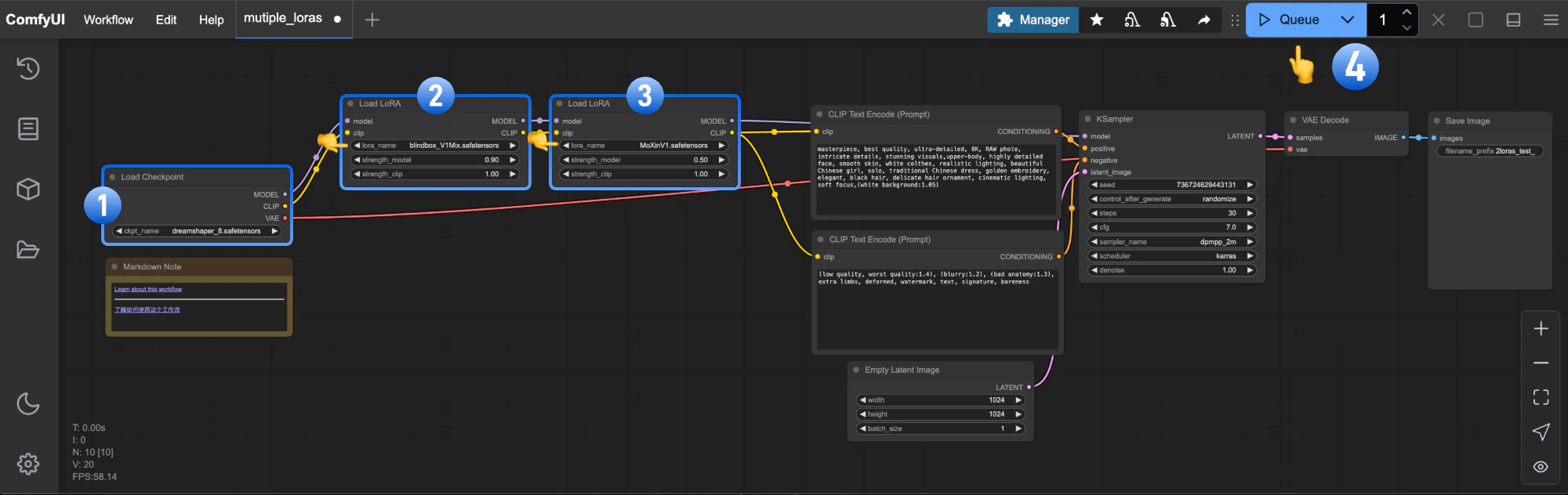 1. 确保`Load Checkpoint`可以加载 **dreamshaper\_8.safetensors**
2. 确保`Load LoRA`可以加载 **blindbox\_V1Mix.safetensors**
3. 确保`Load LoRA`可以加载 **MoXinV1.safetensors**
4. 点击 `Queue` 按钮,或者使用快捷键 `Ctrl(cmd) + Enter(回车)` 来执行图片的生成
## 开始你的尝试
1. 试着调整两个 `Load LoRA` 的 `strength_model` 参数,来修改不同 LoRA 模型对最终生成图片的影响
2. 访问 [CivitAI](https://civitai.com/models) 网站,下载其它风格的 LoRA 模型,组合出你满意的效果
1. 确保`Load Checkpoint`可以加载 **dreamshaper\_8.safetensors**
2. 确保`Load LoRA`可以加载 **blindbox\_V1Mix.safetensors**
3. 确保`Load LoRA`可以加载 **MoXinV1.safetensors**
4. 点击 `Queue` 按钮,或者使用快捷键 `Ctrl(cmd) + Enter(回车)` 来执行图片的生成
## 开始你的尝试
1. 试着调整两个 `Load LoRA` 的 `strength_model` 参数,来修改不同 LoRA 模型对最终生成图片的影响
2. 访问 [CivitAI](https://civitai.com/models) 网站,下载其它风格的 LoRA 模型,组合出你满意的效果