> ## Documentation Index
> Fetch the complete documentation index at: https://dripart-docs-recommend-assets-api.mintlify.site/llms.txt
> Use this file to discover all available pages before exploring further.

# macOS 桌面版

> 本文将介绍 ComfyUI Desktop macOS 版本的下载以及安装使用。

export const log_path_0 = "~/Library/Logs/ComfyUI"

export const config_path_0 = "~/Library/Application Support/ComfyUI"

**ComfyUI 桌面版（Desktop）** 是一个独立的安装版本，可以像常规软件一样安装，支持快捷安装、自动配置 **Python 环境及依赖**，并支持导入已有的 ComfyUI 设置、模型、工作流和文件。

ComfyUI 桌面版是一个开源项目，完整代码请访问[这里](https://github.com/Comfy-Org/desktop)。

<Note>ComfyUI 桌面版（macOS）目前仅支持 Apple Silicon。</Note>

本篇教程将引导你完成对应的软件安装，并提供相关的安装配置说明。

<Warning>由于 **ComfyUI 桌面版** 仍处于 **Beta** 状态，实际的安装过程可能会发生变化。</Warning>

## ComfyUI 桌面版（macOS）下载

请点击下面的按钮下载对应的 macOS 系统 **ComfyUI 桌面版** 安装包。

<a className="prose" href="https://download.comfy.org/mac/dmg/arm64" style={{ display: 'inline-block', backgroundColor: '#0078D6', color: '#ffffff', padding: '10px 20px', borderRadius: '8px', borderColor: "transparent", textDecoration: 'none', fontWeight: 'bold'}}>
  <p className="prose" style={{ margin: 0, fontSize: "0.8rem" }}>Download for macOS</p>
</a>

## 通过 Homebrew 安装

ComfyUI 桌面版也可通过 [Homebrew](https://brew.sh/) 安装：

```
brew install comfyui
```

## ComfyUI 桌面版安装步骤

1. 双击下载到的安装包文件。
2. 如图所示，请将 **ComfyUI** 程序按箭头所示拖入 **Applications** 文件夹。
   <img src="https://mintcdn.com/dripart-docs-recommend-assets-api/xaP6njr8GCp0UjLg/images/desktop/mac-comfyui-desktop-0.png?fit=max&auto=format&n=xaP6njr8GCp0UjLg&q=85&s=1cca5dfb92b6264624894b988735fa3e" alt="ComfyUI 安装包" width="883" height="698" data-path="images/desktop/mac-comfyui-desktop-0.png" />
3. 如果在打开安装包后，文件夹显示如下（图标上出现禁止符号），则说明你当前的系统版本与 **ComfyUI 桌面版** 不兼容。
   <img src="https://mintcdn.com/dripart-docs-recommend-assets-api/xaP6njr8GCp0UjLg/images/desktop/mac-comfyui-desktop-0-1.png?fit=max&auto=format&n=xaP6njr8GCp0UjLg&q=85&s=48106c302e7b51425c585a497c4c6ee5" alt="ComfyUI logo" width="1766" height="1396" data-path="images/desktop/mac-comfyui-desktop-0-1.png" />
4. 然后在 **启动台 (Launchpad)** 中找到对应的 **ComfyUI 图标**，点击它即可进入 ComfyUI 的初始化设置。
   <img src="https://mintcdn.com/dripart-docs-recommend-assets-api/xaP6njr8GCp0UjLg/images/desktop/mac-comfyui-desktop-1.jpg?fit=max&auto=format&n=xaP6njr8GCp0UjLg&q=85&s=58aa692e92277e4a7ec4faab59d46dc9" alt="ComfyUI Launchpad" width="2880" height="1620" data-path="images/desktop/mac-comfyui-desktop-1.jpg" />

## ComfyUI 桌面版初始化流程

<Steps>
  <Step title="开始界面">
    <Tabs>
      <Tab title="正常启动">
        <img src="https://mintcdn.com/dripart-docs-recommend-assets-api/CGwBmVmarMLEBk3u/images/desktop/mac-comfyui-desktop-2.png?fit=max&auto=format&n=CGwBmVmarMLEBk3u&q=85&s=14a61c58c1d03eb21344f90a8f88d0b5" alt="ComfyUI 安装步骤 - 起始" width="1024" height="768" data-path="images/desktop/mac-comfyui-desktop-2.png" />

        点击 **Get Started** 开始初始化步骤。
      </Tab>

      <Tab title="维护页">
        安装 ComfyUI 可能会出现许多问题。也许在安装 pytorch（15 GB）时网络连接失败，或者你没有安装 git，当检测到问题时，维护页面会自动打开，并提供解决问题的方法。

        你可以使用它来解决大多数问题：

        * 创建一个 Python 虚拟环境
        * 重新安装所有缺失的核心依赖项到由桌面管理的 Python 虦虚拟环境
        * 安装 git，VC redis
        * 选择一个新的安装位置

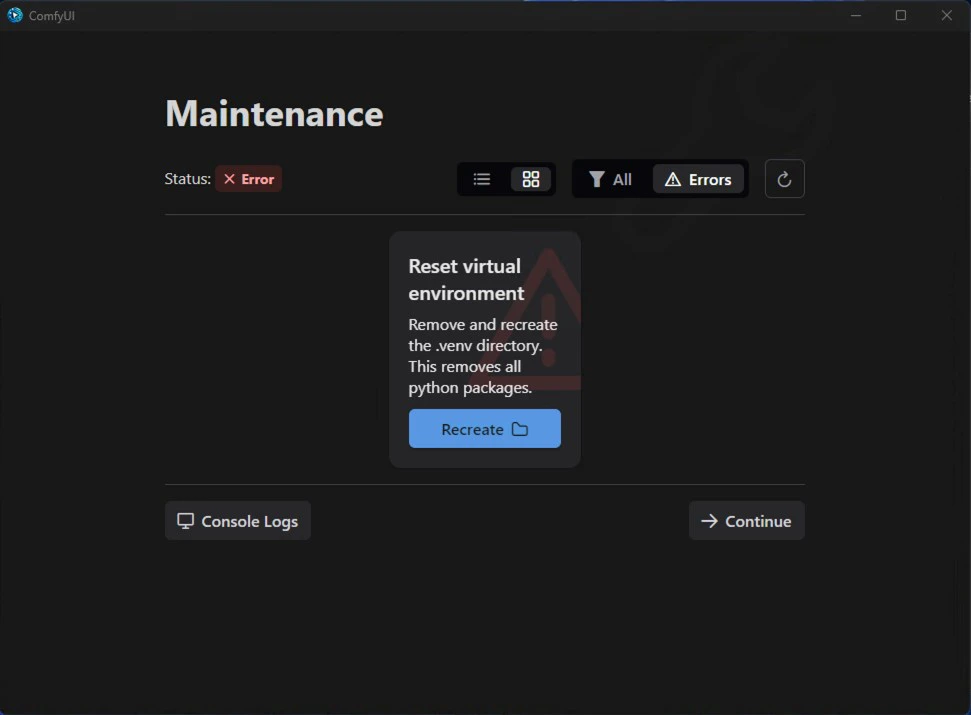
        默认维护页面会显示当前报错的内容

        <img src="https://mintcdn.com/dripart-docs-recommend-assets-api/g5cr9KIJXlIfM-V4/images/desktop/maintenance-1.jpg?fit=max&auto=format&n=g5cr9KIJXlIfM-V4&q=85&s=f9b51b48b725f90092d052791d85a018" alt="ComfyUI 维护页面" width="971" height="715" data-path="images/desktop/maintenance-1.jpg" />

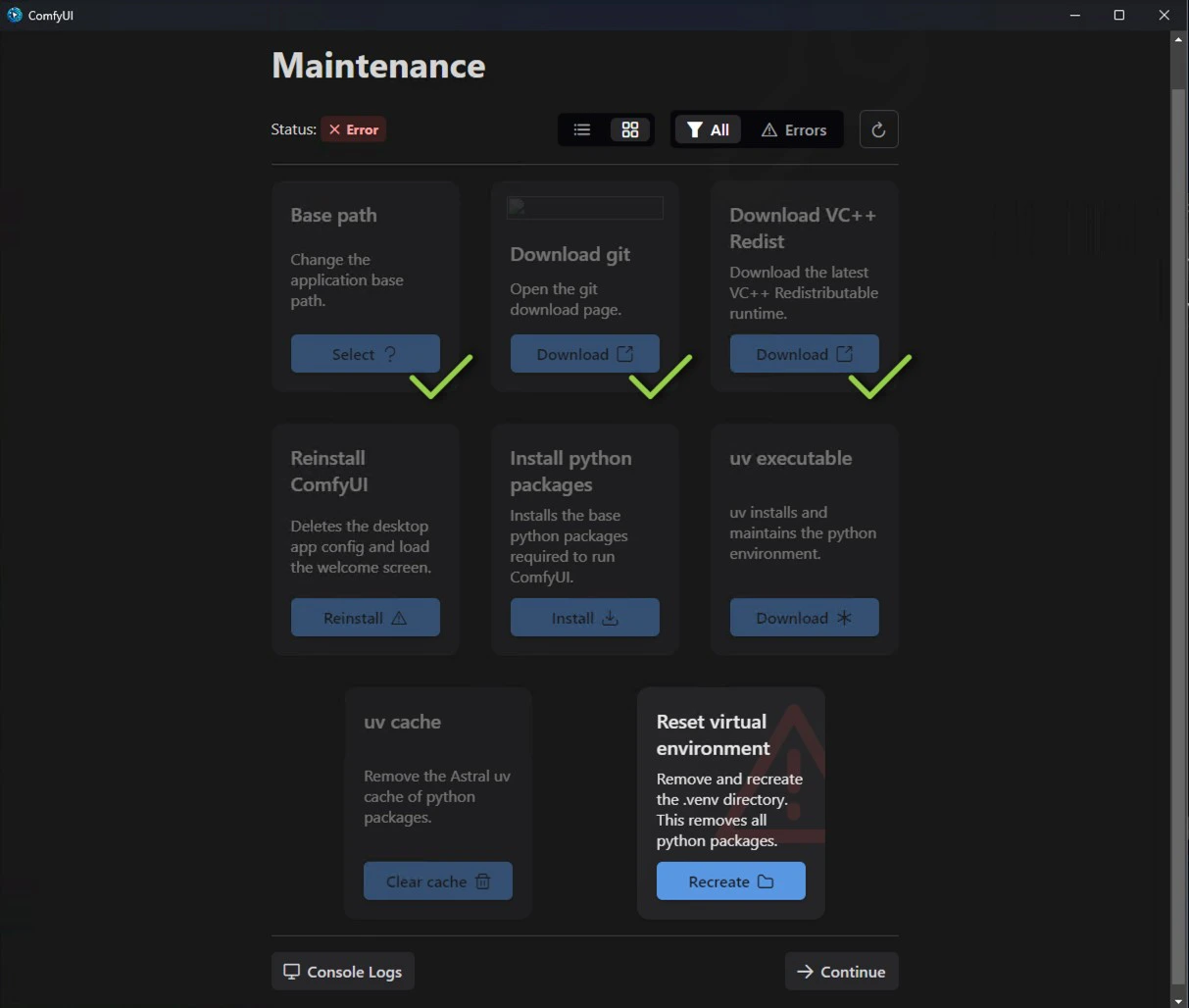
        点击 `All` 可以切换查看可以操作的所有内容

        <img src="https://mintcdn.com/dripart-docs-recommend-assets-api/g5cr9KIJXlIfM-V4/images/desktop/maintenance-2.jpg?fit=max&auto=format&n=g5cr9KIJXlIfM-V4&q=85&s=42916429694a9f7dce5a1ba98d61bdb5" alt="ComfyUI 维护页面" width="1213" height="1028" data-path="images/desktop/maintenance-2.jpg" />
      </Tab>
    </Tabs>
  </Step>

  <Step title="Select GPU（GPU 选择）">
    <img src="https://mintcdn.com/dripart-docs-recommend-assets-api/CGwBmVmarMLEBk3u/images/desktop/mac-comfyui-desktop-3.png?fit=max&auto=format&n=CGwBmVmarMLEBk3u&q=85&s=8cd38c30e5b1ae89db0a9a412113a704" alt="ComfyUI 安装步骤 - GPU 选择" width="1024" height="768" data-path="images/desktop/mac-comfyui-desktop-3.png" />

    对应三个选项：

    1. **MPS（推荐）：** Metal Performance Shaders (MPS) 是苹果的优化框架，让开发者能在苹果设备上利用 GPU 加速包括机器学习在内的高性能计算任务，且支持 PyTorch 等框架使用 GPU 提升模型训练和推理效率。
    2. **Manual Configuration（手动配置）：** 你需要手动安装和配置 Python 运行环境。除非你知道应该如何配置，否则请不要选择。
    3. **Enable CPU Mode（启用 CPU 模式）：** 仅适用于开发人员和特殊情况。除非你确定需要使用此模式，否则请不要选择。

    如无特殊情况，请按截图所示选择 **MPS**，然后点击 **Next** 进入下一步。
  </Step>

  <Step title="Install Location（安装位置）">
    <img src="https://mintcdn.com/dripart-docs-recommend-assets-api/CGwBmVmarMLEBk3u/images/desktop/mac-comfyui-desktop-4.png?fit=max&auto=format&n=CGwBmVmarMLEBk3u&q=85&s=72b4b22494efc11509d05cc1a2237db7" alt="ComfyUI 安装步骤 - 安装位置设置" width="1024" height="768" data-path="images/desktop/mac-comfyui-desktop-4.png" />

    在这一步选择 ComfyUI 以下相关内容的安装位置：

    * **Python 环境**
    * **Models（模型文件）**
    * **Custom Nodes（自定义节点）**

    建议：

    * 请新建一个单独的空白文件夹作为 ComfyUI 的安装目录。
    * 请确保磁盘至少有 **5GB** 左右的可用空间，以保证 **ComfyUI 桌面版** 的正常安装。

    <Note>ComfyUI 并非所有文件都安装在此目录下，部分文件将会位于 macOS 的系统目录下。你可以参考本篇指南的卸载部分，了解如何完全卸载 ComfyUI 桌面版。</Note>

    完成后点击 **Next** 进入下一步。
  </Step>

  <Step title="Migrate from Existing Installation（从已有安装迁移 - 可选）">
    <img src="https://mintcdn.com/dripart-docs-recommend-assets-api/CGwBmVmarMLEBk3u/images/desktop/mac-comfyui-desktop-5.png?fit=max&auto=format&n=CGwBmVmarMLEBk3u&q=85&s=131babcf100c8b7d7bda6febfe143c0d" alt="ComfyUI 安装步骤 - 文件迁移" width="1024" height="768" data-path="images/desktop/mac-comfyui-desktop-5.png" />

    在这一步，你可以将已有的 ComfyUI 安装内容迁移到 ComfyUI 桌面版中。选择你电脑上已有的 **ComfyUI** 安装目录，安装程序会自动识别对应目录下的：

    * **User Files（用户文件）**
    * **Models（模型文件）：** 不会进行复制，只是与桌面版进行关联。
    * **Custom Nodes（自定义节点）：** 节点将会重新进行安装。

    不用担心，此步骤不会复制模型文件。你可以按需勾选或取消勾选对应的选项，然后点击 **Next** 进入下一步。
  </Step>

  <Step title="Desktop Settings（桌面版设置）">
    <img src="https://mintcdn.com/dripart-docs-recommend-assets-api/CGwBmVmarMLEBk3u/images/desktop/mac-comfyui-desktop-6.png?fit=max&auto=format&n=CGwBmVmarMLEBk3u&q=85&s=239970bdd1c081d8aabbfb5b96d40bf2" alt="ComfyUI 安装步骤 - 桌面版设置" width="1024" height="768" data-path="images/desktop/mac-comfyui-desktop-6.png" />

    这一步是偏好设置：

    1. **Automatic Updates（自动更新）：** 设置是否在 ComfyUI 更新可用时自动更新。
    2. **Usage Metrics（使用情况分析）：** 如果启用，我们将收集**匿名的使用数据**，用于帮助我们改进 ComfyUI。
    3. **Mirror Settings（镜像设置）：** 由于程序需要联网下载 Python 以完成相关环境安装，如果你在安装时也如图所示出现红色的 ❌，这可能导致后续安装失败。请参考下面步骤进行处理：

           <img src="https://mintcdn.com/dripart-docs-recommend-assets-api/CGwBmVmarMLEBk3u/images/desktop/mac-comfyui-desktop-7.png?fit=max&auto=format&n=CGwBmVmarMLEBk3u&q=85&s=04ac2d18fbae263dea80683581915819" alt="ComfyUI 安装步骤 - 镜像设置" width="1024" height="768" data-path="images/desktop/mac-comfyui-desktop-7.png" />

       展开对应的镜像设置，找到具体失败的镜像。在当前截图中，错误为 **Python Install Mirror** 镜像下载失败。

       对于不同的镜像错误，你可以参考下面的内容尝试手动查找不同的镜像，并进行替换

       以下情况主要针对中国境内用户

       #### Python 安装镜像

       如果默认镜像无法使用，请尝试使用下面的镜像

       ```
       https://python-standalone.org/mirror/astral-sh/python-build-standalone
       ```

       如果你需要查找其它备选 GitHub 的镜像地址，请查找并构建指向 `python-build-standalone` 仓库releases的镜像地址

       ```
       https://github.com/astral-sh/python-build-standalone/releases/download
       ```

       构建类似下面格式的链接

       ```
       https://xxx/astral-sh/python-build-standalone/releases/download
       ```
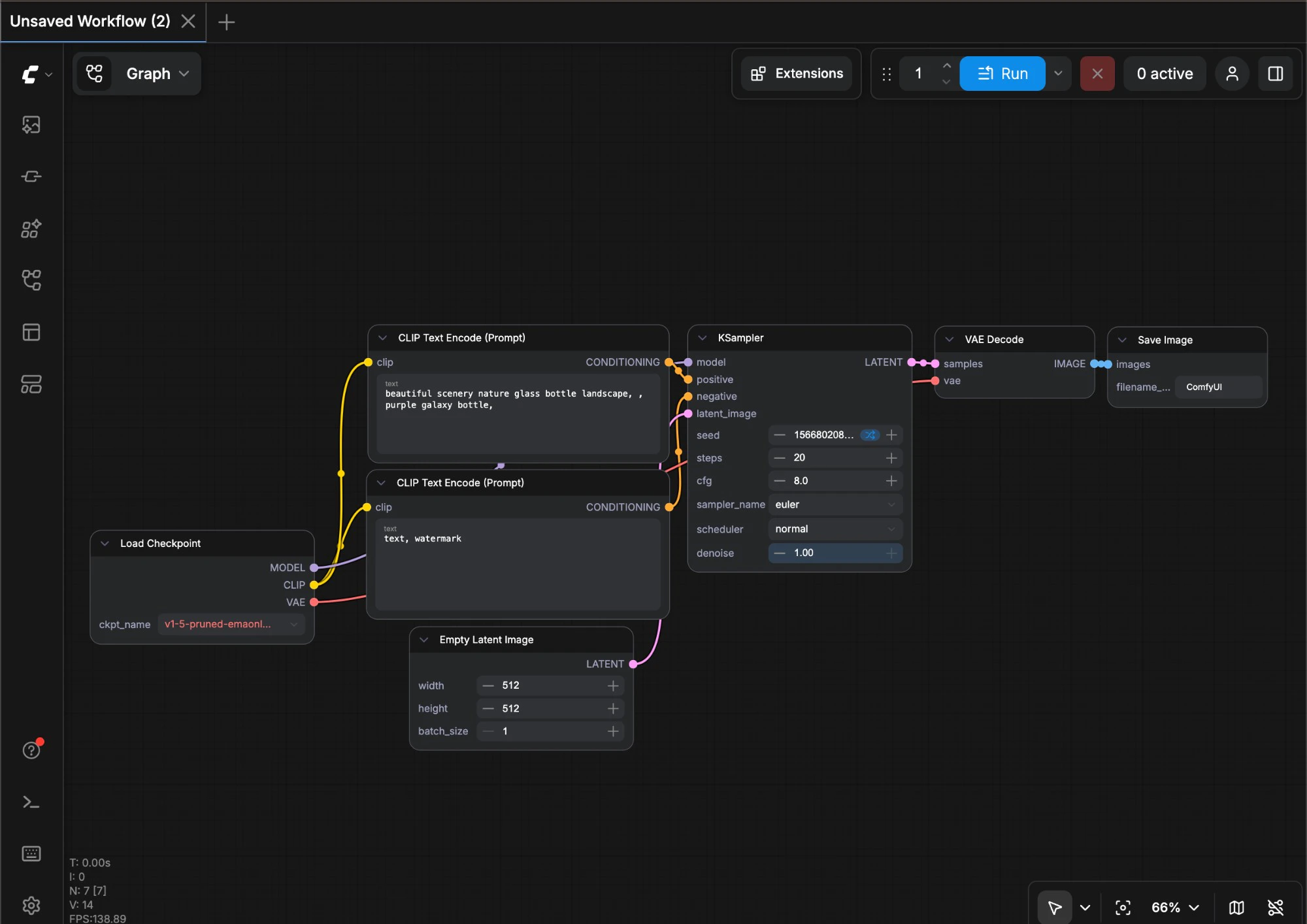
       <info>由于大多 Github 镜像服务都由第三方提供，所以请注意使用过程中的安全性。</info>

       #### PyPI 镜像

       * 阿里云：[https://mirrors.aliyun.com/pypi/simple/](https://mirrors.aliyun.com/pypi/simple/)
       * 腾讯云：[https://mirrors.cloud.tencent.com/pypi/simple/](https://mirrors.cloud.tencent.com/pypi/simple/)
       * 中国科技大学：[https://pypi.mirrors.ustc.edu.cn/simple/](https://pypi.mirrors.ustc.edu.cn/simple/)
       * 上海交通大学：[https://pypi.sjtu.edu.cn/simple/](https://pypi.sjtu.edu.cn/simple/)

       #### Torch 镜像

       * 阿里云: [https://mirrors.aliyun.com/pytorch-wheels/cu121/](https://mirrors.aliyun.com/pytorch-wheels/cu121/)
  </Step>

  <Step title="完成安装">
    如果一切无误，安装程序将完成安装并自动进入 ComfyUI 桌面版界面，这说明已经安装成功。

    <img src="https://mintcdn.com/dripart-docs-recommend-assets-api/xaP6njr8GCp0UjLg/images/desktop/comfyui-interface.jpg?fit=max&auto=format&n=xaP6njr8GCp0UjLg&q=85&s=0779d951421e532f8897b67e9c1d68e0" alt="ComfyUI 桌面版界面" width="2000" height="1414" data-path="images/desktop/comfyui-interface.jpg" />
  </Step>
</Steps>

## 重要提示：请勿修改 resource/ComfyUI 文件夹

<Warning>
  请勿在 `/resource/ComfyUI` 文件夹中添加或修改任何内容。此文件夹中的所有内容将在 ComfyUI 桌面版更新时被重置。

  与其他 ComfyUI 版本不同，桌面版会自动管理此文件夹。在安装过程中，你已选择了模型、自定义节点和其他用户文件的自定义存储位置，请使用该位置存放你的文件。
</Warning>

## 进行第一次图片生成

安装成功后，你可以参考访问下面的章节，开始你的 ComfyUI 之路。

<Card title="进行第一次图片生成" icon="link" href="/zh/get_started/first_generation">
  本教程将引导你完成第一次的模型安装以及对应的文本到图片的生成
</Card>

## 如何更新 ComfyUI 桌面版

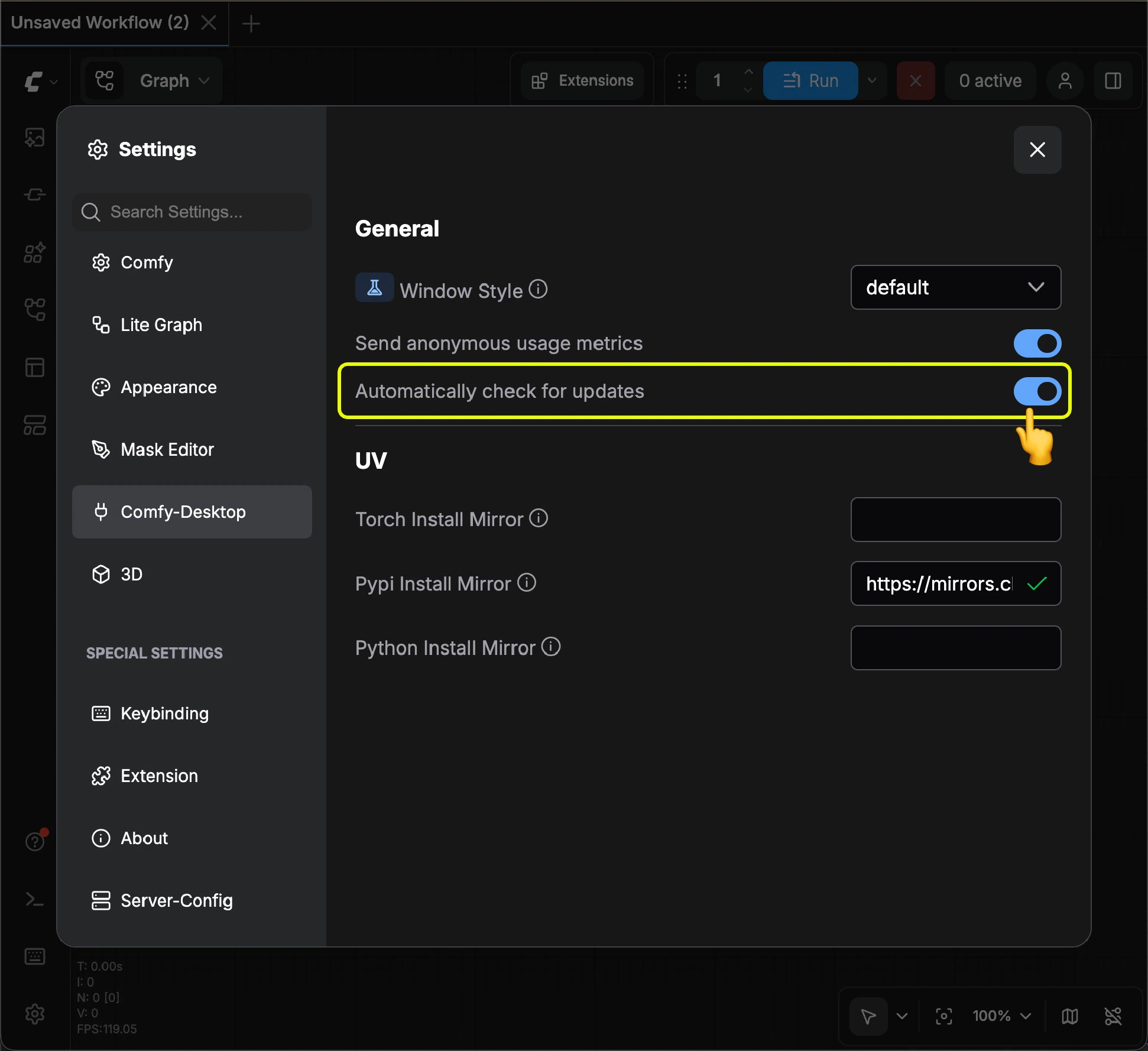
目前 ComfyUI 桌面版更新采用自动检测更新，请确保在设置中已经启用自动更新

<img src="https://mintcdn.com/dripart-docs-recommend-assets-api/xaP6njr8GCp0UjLg/images/desktop/comfyui-desktop-update-setting.jpg?fit=max&auto=format&n=xaP6njr8GCp0UjLg&q=85&s=8e17573f9b685ab6d9c36b95ce8cf920" alt="ComfyUI 桌面版设置" width="1942" height="1778" data-path="images/desktop/comfyui-desktop-update-setting.jpg" />

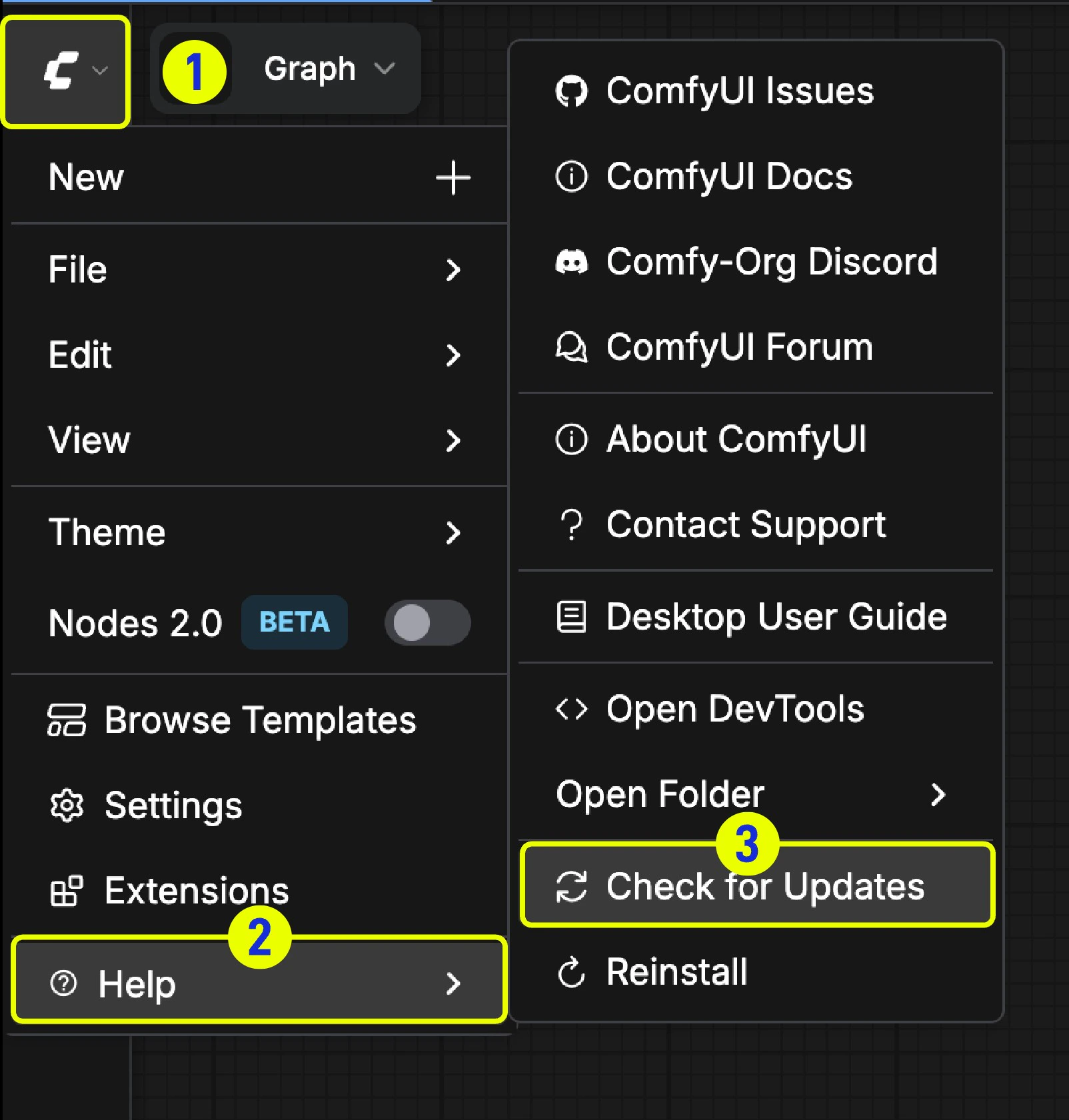
你也可以在 `菜单` --> `帮助` --> `检查更新` 中选择手动检查是否有可用的更新
<img src="https://mintcdn.com/dripart-docs-recommend-assets-api/xaP6njr8GCp0UjLg/images/desktop/desktop_check_for_updates.jpg?fit=max&auto=format&n=xaP6njr8GCp0UjLg&q=85&s=2bd800f6ff0e826bd68526f6c4212448" alt="ComfyUI 桌面版检查更新" width="1604" height="1681" data-path="images/desktop/desktop_check_for_updates.jpg" />

## 添加外部模型路径

如果你想要在 `ComfyUI/models` 之外管理你的模型文件，可能出于以下原因:

* 你有多个 ComfyUI 实例，你想要让这些实例共享模型文件，从而减少磁盘占用
* 你有多个不同的类型的 GUI 程序，如：WebUI, 你想要他们共用模型文件
* 模型文件无法被识别或读取到

我们提供了通过 `extra_model_paths.yaml` 配置文件来添加额外模型搜索路径的方法。

### 不同 ComfyUI 版本配置文件位置
<Tabs>
  <Tab title="Portable 及自部署">
    对于[便携版](/zh/installation/comfyui_portable_windows)和[手动安装](/zh/installation/manual_install)的 ComfyUI版本，你可以在 ComfyUI 的根目录下找到 `extra_model_paths.yaml.example` 的示例文件

    ```
    ComfyUI/extra_model_paths.yaml.example
    ```

    复制并重命名为 `extra_model_paths.yaml` 来使用, 并保持在 ComfyUI 的根目录下, 路径应该是 `ComfyUI/extra_model_paths.yaml`

    你也可以在 [这里](https://github.com/comfyanonymous/ComfyUI/blob/master/extra_model_paths.yaml.example) 找到配置示例文件
  </Tab>

  <Tab title="ComfyUI Desktop">
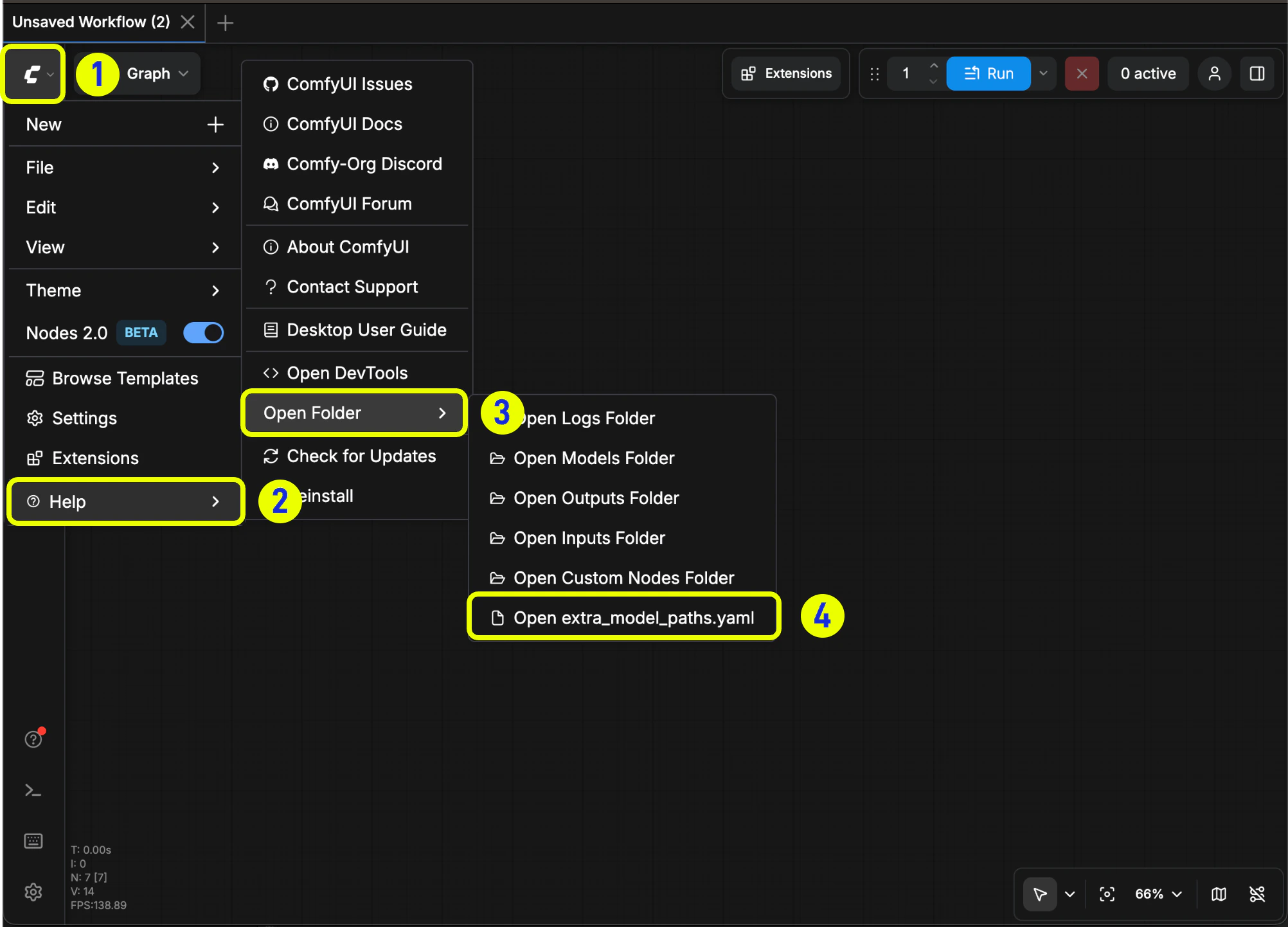
    如果你使用的是 ComfyUI 桌面应用程序，你可以参考下图打开额外模型的配置文件：

    <img src="https://mintcdn.com/dripart-docs-recommend-assets-api/xaP6njr8GCp0UjLg/images/desktop/extra_model_paths.png?fit=max&auto=format&n=xaP6njr8GCp0UjLg&q=85&s=ddd9f3d45170457ead8164650a6c64b5" alt="Open Config File" width="2004" height="1442" data-path="images/desktop/extra_model_paths.png" />

    或者通过下面的位置打开：

    <Tabs>
      <Tab title="Windows">
        ```
        C:\Users\YourUsername\AppData\Roaming\ComfyUI\extra_models_config.yaml
        ```
      </Tab>

      <Tab title="macOS">
        ```
        ~/Library/Application Support/ComfyUI/extra_models_config.yaml
        ```
      </Tab>
    </Tabs>

    对应的配置文件不应该被改变
  </Tab>
</Tabs>

### 配置示例

比如，你需要额外让 ComfyUI 识别的模型文件位于下面的文件夹:

```
📁 YOUR_PATH/
  ├── 📁models/
  |   ├── 📁 loras/
  |   │   └── xxxxx.safetensors
  |   ├── 📁 checkpoints/
  |   │   └── xxxxx.safetensors
  |   ├── 📁 vae/
  |   │   └── xxxxx.safetensors
  |   └── 📁 controlnet/
  |       └── xxxxx.safetensors
```

那么你可以进行如下的配置来让 ComfyUI 识别到你设备上的模型路径

```
my_custom_config:
    base_path: YOUR_PATH
    loras: models/loras/
    checkpoints: models/checkpoints/
    vae: models/vae/
    controlnet: models/controlnet/
```

或者使用

```
my_custom_config:
    base_path: YOUR_PATH/models/
    loras: loras
    checkpoints: checkpoints
    vae: vae
    controlnet: controlnet
```

<Warning>
  对于桌面版，请在原有配置路径下新增配置，而不覆盖掉安装过程中自动生成的路径配置，请在修改前备份对应的文件，这样在你配置错误时可以及时恢复
</Warning>

或者你也可以参考默认的 [extra\_model\_paths.yaml.example](https://github.com/comfyanonymous/ComfyUI/blob/master/extra_model_paths.yaml.example) 来配置，保存之后， 需要 **重启 ComfyUI** 才能生效。

下面是完整的原始的配置配置示例:

```yaml theme={null}
#Rename this to extra_model_paths.yaml and ComfyUI will load it


#config for a1111 ui
#all you have to do is change the base_path to where yours is installed
a111:
    base_path: path/to/stable-diffusion-webui/

    checkpoints: models/Stable-diffusion
    configs: models/Stable-diffusion
    vae: models/VAE
    loras: |
         models/Lora
         models/LyCORIS
    upscale_models: |
                  models/ESRGAN
                  models/RealESRGAN
                  models/SwinIR
    embeddings: embeddings
    hypernetworks: models/hypernetworks
    controlnet: models/ControlNet

#config for comfyui
#your base path should be either an existing comfy install or a central folder where you store all of your models, loras, etc.

#comfyui:
#     base_path: path/to/comfyui/
#     # You can use is_default to mark that these folders should be listed first, and used as the default dirs for eg downloads
#     #is_default: true
#     checkpoints: models/checkpoints/
#     clip: models/clip/
#     clip_vision: models/clip_vision/
#     configs: models/configs/
#     controlnet: models/controlnet/
#     diffusion_models: |
#                  models/diffusion_models
#                  models/unet
#     embeddings: models/embeddings/
#     loras: models/loras/
#     upscale_models: models/upscale_models/
#     vae: models/vae/

#other_ui:
#    base_path: path/to/ui
#    checkpoints: models/checkpoints
#    gligen: models/gligen
#    custom_nodes: path/custom_nodes

```

### 添加额外自定义节点路径

除了添加外部模型之外，你同样可以添加不在 ComfyUI 默认路径下的自定义节点路径

<Tip>
  请注意，这并不会改变自定义节点的默认安装路径，只是在启动 ComfyUI 时会增加额外的路径搜索，你仍旧需要在对应的环境中完成自定义节点的依赖的安装，来保证其运行环境的完整性。
</Tip>

下面是一个简单的配置示例（Mac 系统），请根据你的实际情况进行修改，并新增到对应的配置文件中，保存后需要 **重启 ComfyUI** 才能生效:

```yaml theme={null}
my_custom_nodes:
  custom_nodes: /Users/your_username/Documents/extra_custom_nodes
```

## 桌面端 Python 环境相关

桌面端的安装将在你选择的安装目录下创建一个python 的虚拟环境，通常这是一个隐藏的 `.venv` 文件夹。

如果你需要为 ComfyUI 插件处理相关的依赖则需要在这个环境中进行处理，直接系统系统的命令行会有将对应依赖安装到系统环境的风险，请参考下面的指示完成对应环境的激活。

### 如何使用 桌面端 的 python 环境？

<Tabs>
  <Tab title="Desktop(推荐)">
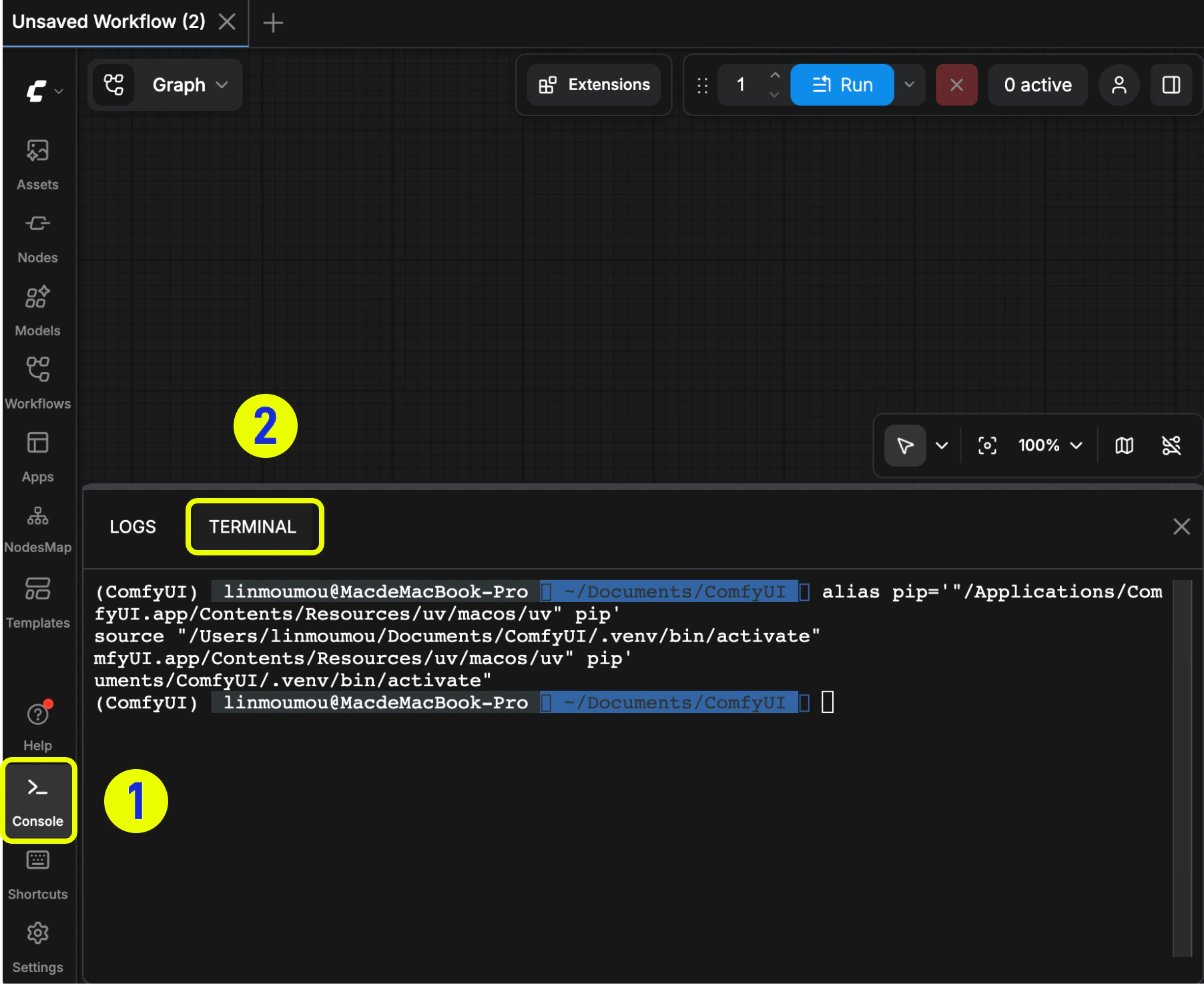
    你可以使用桌面端自带的终端来使用 python 环境。

    <img src="https://mintcdn.com/dripart-docs-recommend-assets-api/xaP6njr8GCp0UjLg/images/desktop/desktop_terminal.png?fit=max&auto=format&n=xaP6njr8GCp0UjLg&q=85&s=9537106575de3901f040103920e70e00" alt="ComfyUI 桌面版终端" width="1804" height="1474" data-path="images/desktop/desktop_terminal.png" />

    1. 点击菜单栏的 icon 打开底部面板
    2. 点击 `Terminal` 打开终端
    3. 如果你想要看对应环境的 python 安装位置，可以使用下面的命令

    <Tabs>
      <Tab title="Windows">
        ```
          python -c "import sys; print(sys.executable)"
        ```
      </Tab>

      <Tab title="macOS">
        ```
        which python
        ```
      </Tab>
    </Tabs>

    <Warning>
      除非你了解你当前的操作含义，否则你的操作可能会导致对应环境依赖的问题，请谨慎使用此方式进行操作
    </Warning>
  </Tab>

  <Tab title="Terminal">
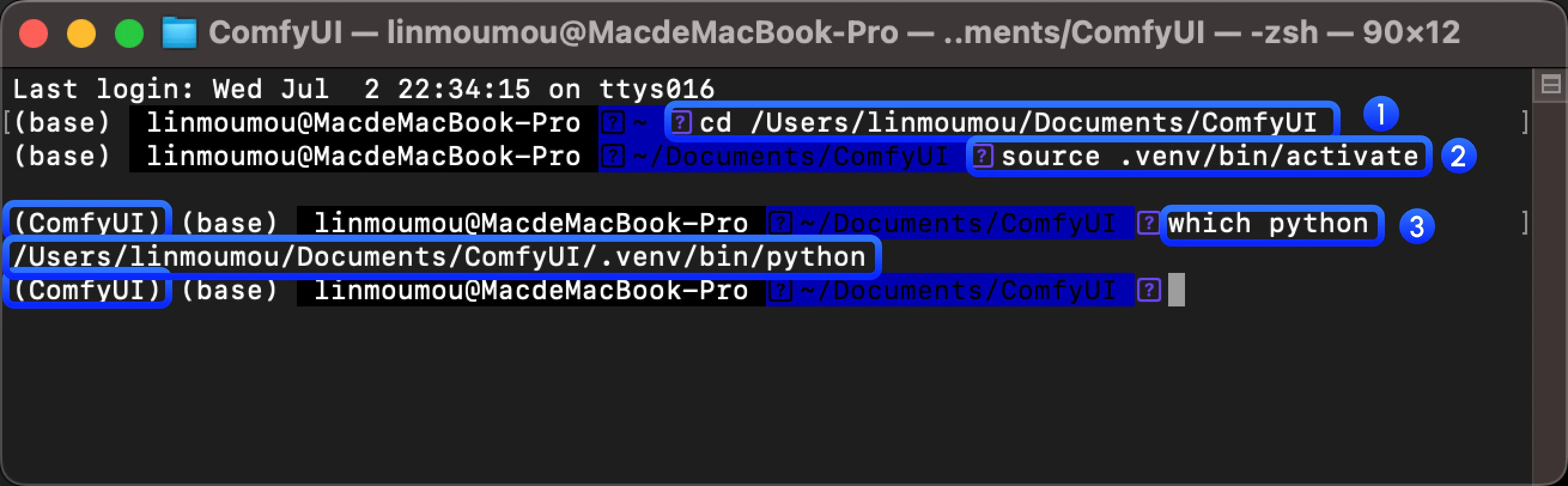
    你也可以使用你喜欢的终端来使用 python 环境，但在使用之前需要先激活对应的虚拟环境。

    <Warning>
      在使用其它终端进行操作时，如果你不熟悉相关操作，可能会将对应依赖安装到系统环境，请谨慎使用此方式进行操作
    </Warning>

    <img src="https://mintcdn.com/dripart-docs-recommend-assets-api/g5cr9KIJXlIfM-V4/images/desktop/terminal.jpg?fit=max&auto=format&n=g5cr9KIJXlIfM-V4&q=85&s=16c99a9e377b7f42dcaece968330a2c6" alt="使用系统来激活环境" width="2620" height="812" data-path="images/desktop/terminal.jpg" />

    <Warning>
      在截图中，是一个 macOS 终端的示例。如果你使用的是 Windows，请参考以下步骤在系统上激活虚拟环境。
    </Warning>

    <Steps>
      <Step title="打开终端">
        打开你喜欢的终端，使用 `cd` 命令进入你安装的 ComfyUI 的目录如

        ```
        cd <你的 ComfyUI 安装目录>/ComfyUI
        ```
      </Step>

      <Step title="激活虚拟环境">
        在终端中输入下面的命令激活虚拟环境

        <Tabs>
          <Tab title="Windows">
            ```
            .venv/Scripts/activate
            ```
          </Tab>

          <Tab title="macOS">
            ```
            source .venv/bin/activate
            ```
          </Tab>
        </Tabs>

        激活后，你可以在终端中看到类似 `(ComfyUI)` 的提示，表示你已经激活了虚拟环境
      </Step>

      <Step title="确认当前 python 环境">
        使用 `which python` 查看当前 python 所在环境，确认不是系统环境
      </Step>

      完成以上步骤后你就激活了对应的 Python 环境，你可以继续在这个环境里进行依赖安装相关的操作了。
    </Steps>
  </Tab>
</Tabs>

## 如何卸载 ComfyUI 桌面版

要卸载 **ComfyUI 桌面版**，你可以直接在 **Applications** 文件夹内删除 **ComfyUI** 程序。

如果你想要**完全删除** **ComfyUI 桌面版** 的所有文件，可以手动删除以下文件夹：

```
~/Library/Application Support/ComfyUI
```

以上操作**不会**删除你的以下文件夹。如果需要，请手动删除：

* Models（模型文件）
* Custom Nodes（自定义节点）
* Input/Output 目录（图片输入/输出目录）

## 故障排除

### 如何定位安装错误

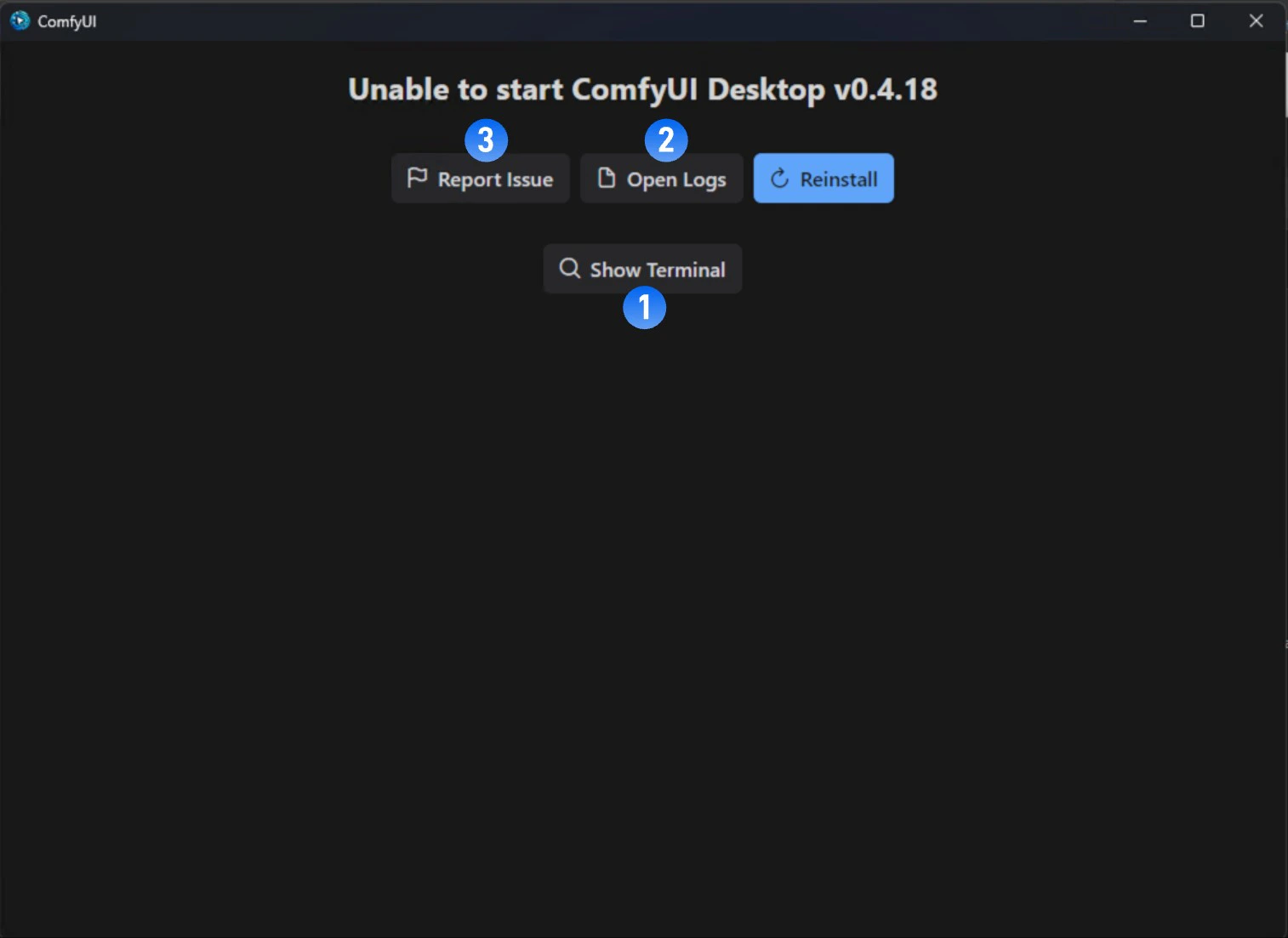
如果安装失败，你应该可以看到下面的界面显示

<img src="https://mintcdn.com/dripart-docs-recommend-assets-api/g5cr9KIJXlIfM-V4/images/desktop/win-comfyui-desktop-7.jpg?fit=max&auto=format&n=g5cr9KIJXlIfM-V4&q=85&s=3c07b76d175644671d6173d875b0d88d" alt="ComfyUI 安装失败" width="1514" height="1103" data-path="images/desktop/win-comfyui-desktop-7.jpg" />

此时建议你采取以下几种方式查找错误原因

1. 点击 `Show Teriminal` 查看错误问题输出
2. 点击 `Open Logs` 查看安装过程日志
3. 访问官方论坛查找错误反馈
4. 点击`Reinstall`尝试重新安装

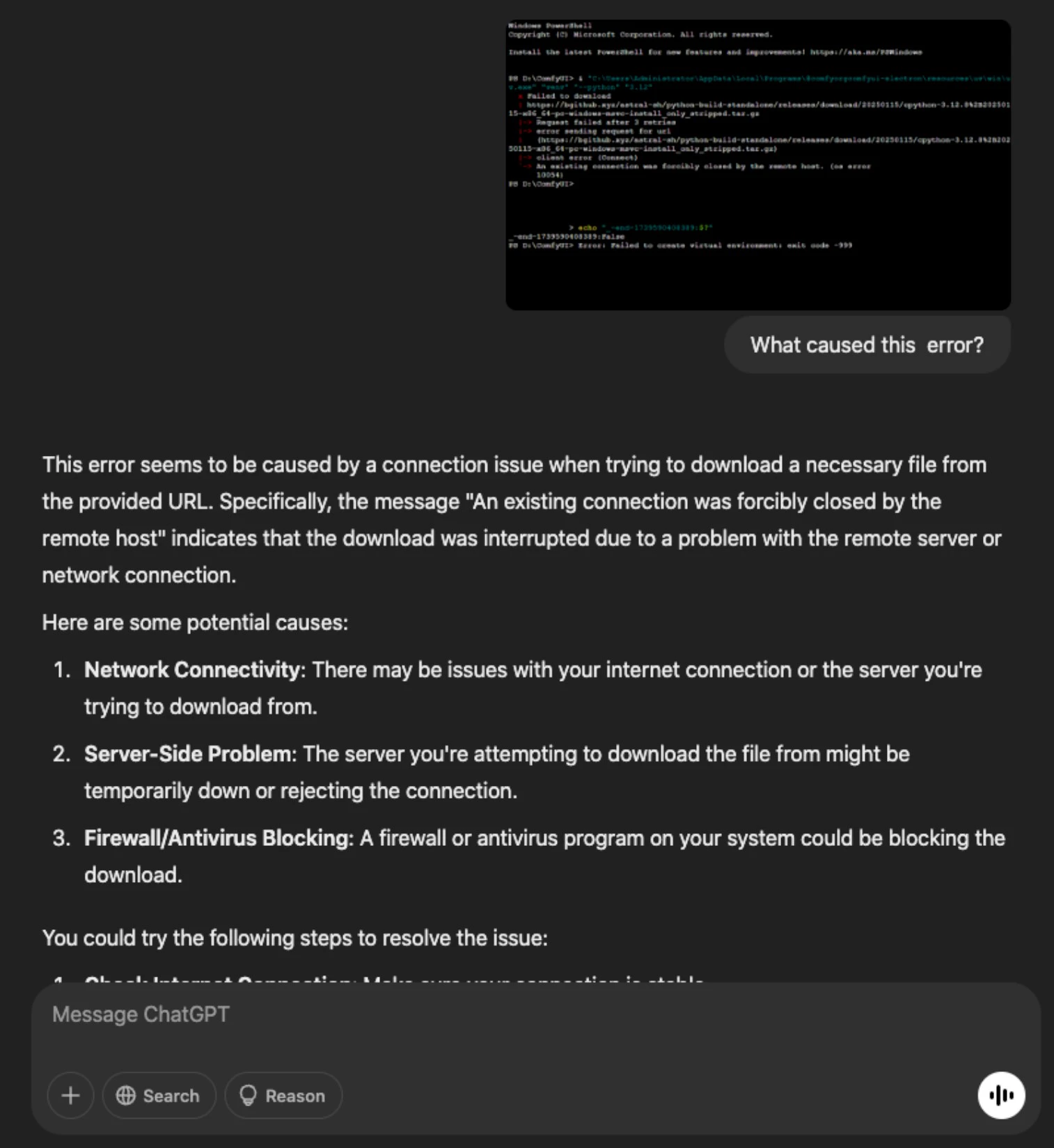
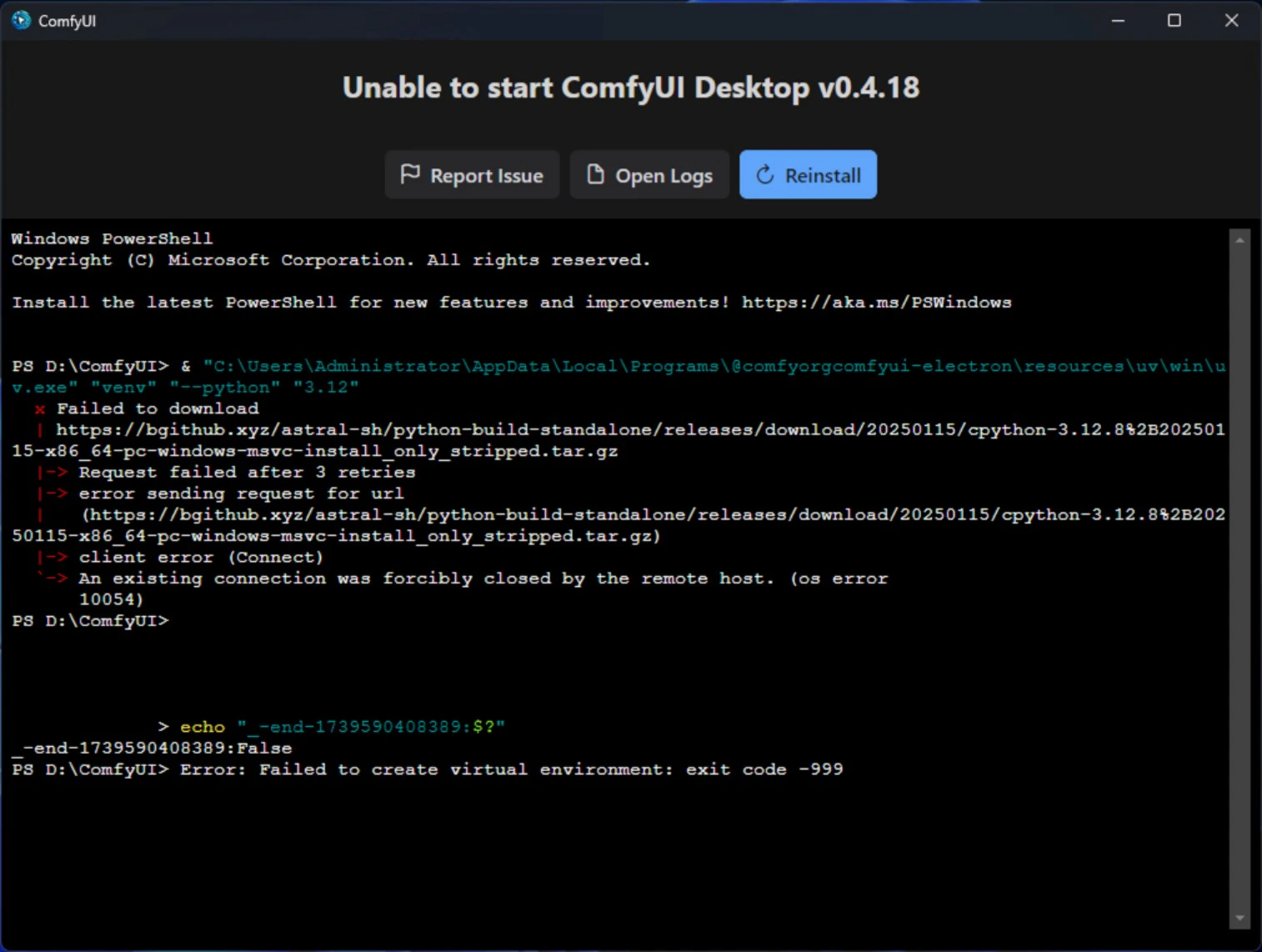
建议在提交反馈之前，你可以将对应的**错误输出**以及 **log 文件**信息提供给类似 **GPT**一类的工具
<img src="https://mintcdn.com/dripart-docs-recommend-assets-api/g5cr9KIJXlIfM-V4/images/desktop/win-comfyui-desktop-8.jpg?fit=max&auto=format&n=g5cr9KIJXlIfM-V4&q=85&s=f12b97580a083b44fcbe616f3c9637d6" alt="ComfyUI 安装失败-错误日志" width="1514" height="1142" data-path="images/desktop/win-comfyui-desktop-8.jpg" />

<img src="https://mintcdn.com/dripart-docs-recommend-assets-api/g5cr9KIJXlIfM-V4/images/desktop/win-comfyui-desktop-9.jpg?fit=max&auto=format&n=g5cr9KIJXlIfM-V4&q=85&s=ef32a30baacf2ac1e4d48673d177fe04" alt="ComfyUI 安装失败-GPT 反馈" width="1514" height="1649" data-path="images/desktop/win-comfyui-desktop-9.jpg" />

如上图，询问对应错误的原因，或者完全删除 ComfyUI 后进行安装重试

### 反馈错误

如果在安装过程中，你发生了任何错误，请通过以下任意方式查看是否有类似错误反馈，或者向我们提交错误

* Github Issues: [https://github.com/Comfy-Org/desktop/issues](https://github.com/Comfy-Org/desktop/issues)
* Comfy 官方论坛: [https://forum.comfy.org/](https://forum.comfy.org/)

请在提交错误时确保提交了以下日志以及配置文件，方便我们进行问题的定位和查找

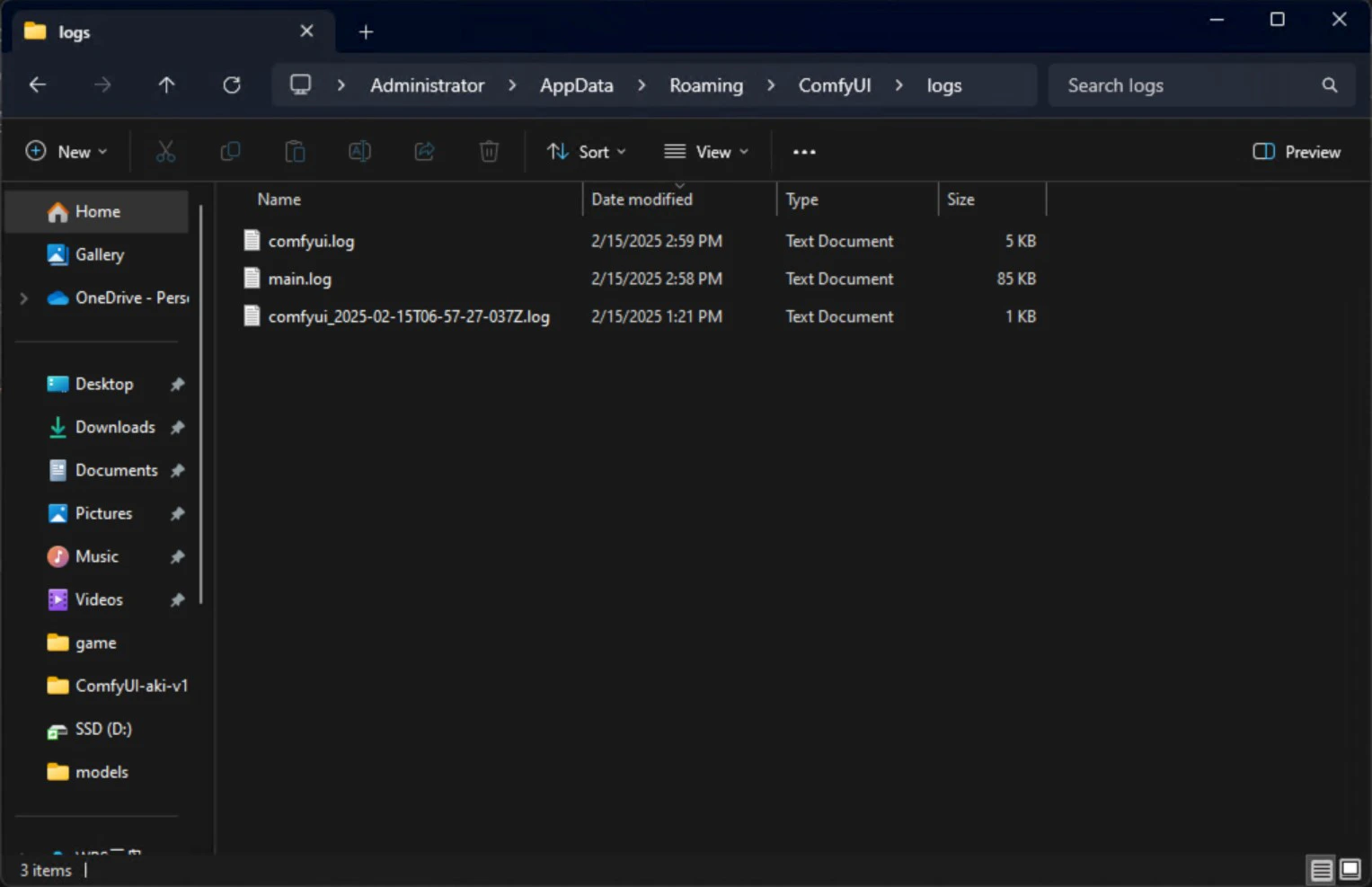
1. 日志文件

| 文件名         | 描述                                          | 位置           |
| ----------- | ------------------------------------------- | ------------ |
| main.log    | 包含与桌面应用和服务器启动相关的日志，来自桌面的 Electron 进程。       | {log_path_0} |
| comfyui.log | 包含与 ComfyUI 正常运行相关的日志，例如核心 ComfyUI 进程的终端输出。 | {log_path_0} |

<img src="https://mintcdn.com/dripart-docs-recommend-assets-api/g5cr9KIJXlIfM-V4/images/desktop/win-comfyui-desktop-10-logs.jpg?fit=max&auto=format&n=g5cr9KIJXlIfM-V4&q=85&s=15711536bfc4b8457c1ad955fd43ebb2" alt="ComfyUI 日志文件输出位置" width="1527" height="987" data-path="images/desktop/win-comfyui-desktop-10-logs.jpg" />

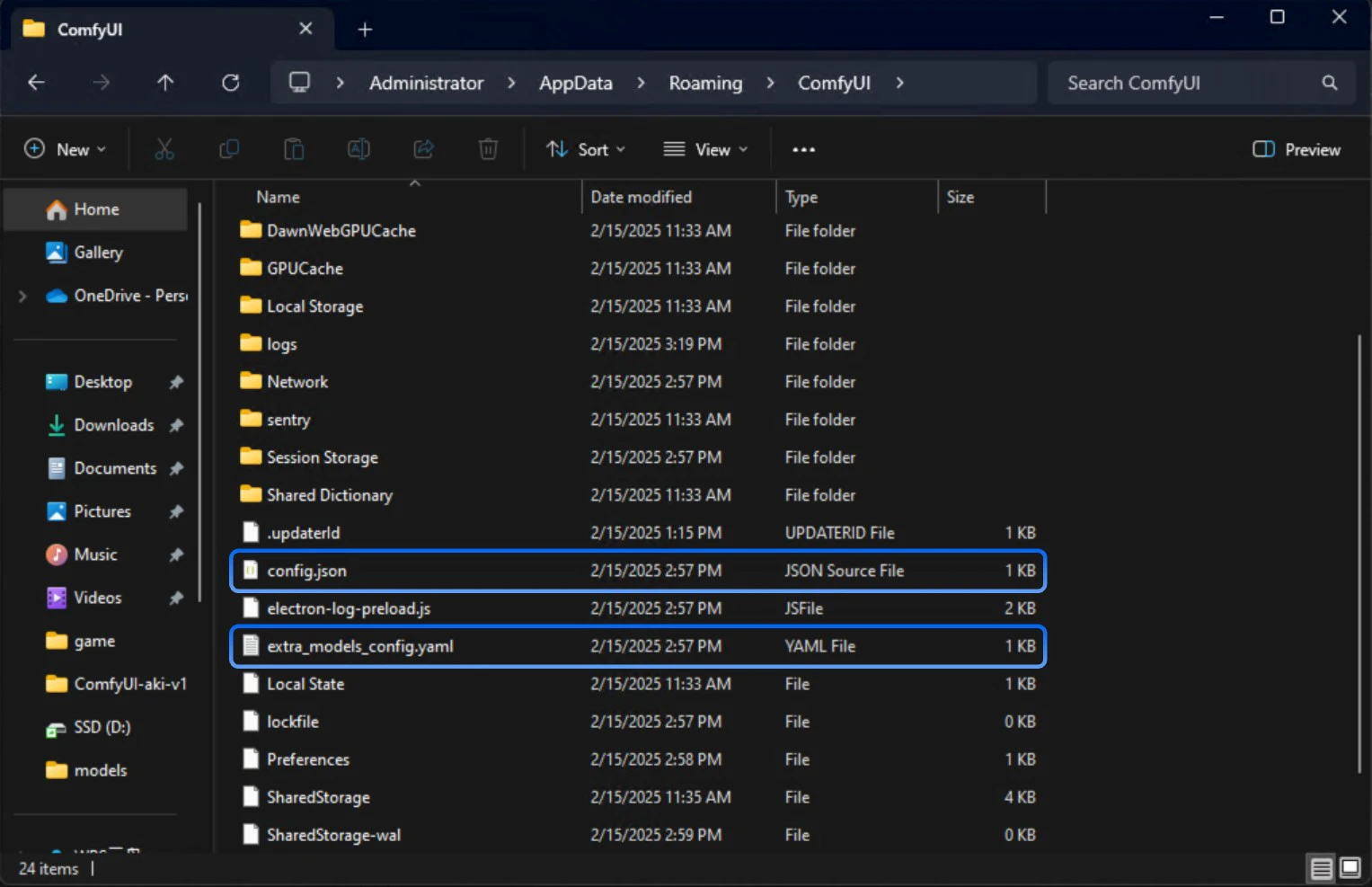
2. 配置文件

| 文件名                      | 描述                           | 位置              |
| ------------------------ | ---------------------------- | --------------- |
| extra\_model\_paths.yaml | 包含 ComfyUI 将搜索模型和自定义节点的额外路径。 | {config_path_0} |
| config.json              | 包含应用配置。此文件通常不应直接编辑。          | {config_path_0} |
<img src="https://mintcdn.com/dripart-docs-recommend-assets-api/g5cr9KIJXlIfM-V4/images/desktop/win-comfyui-desktop-11-config.jpg?fit=max&auto=format&n=g5cr9KIJXlIfM-V4&q=85&s=2854c1af6878392beb6ce4b2c19a7ffd" alt="ComfyUI 配置文件位置" width="1527" height="987" data-path="images/desktop/win-comfyui-desktop-11-config.jpg" />