JSON ワークフローをダウンロード
Comfy Cloud で実行
以下の素材を入力としてダウンロードしてください: **参照画像:**\ 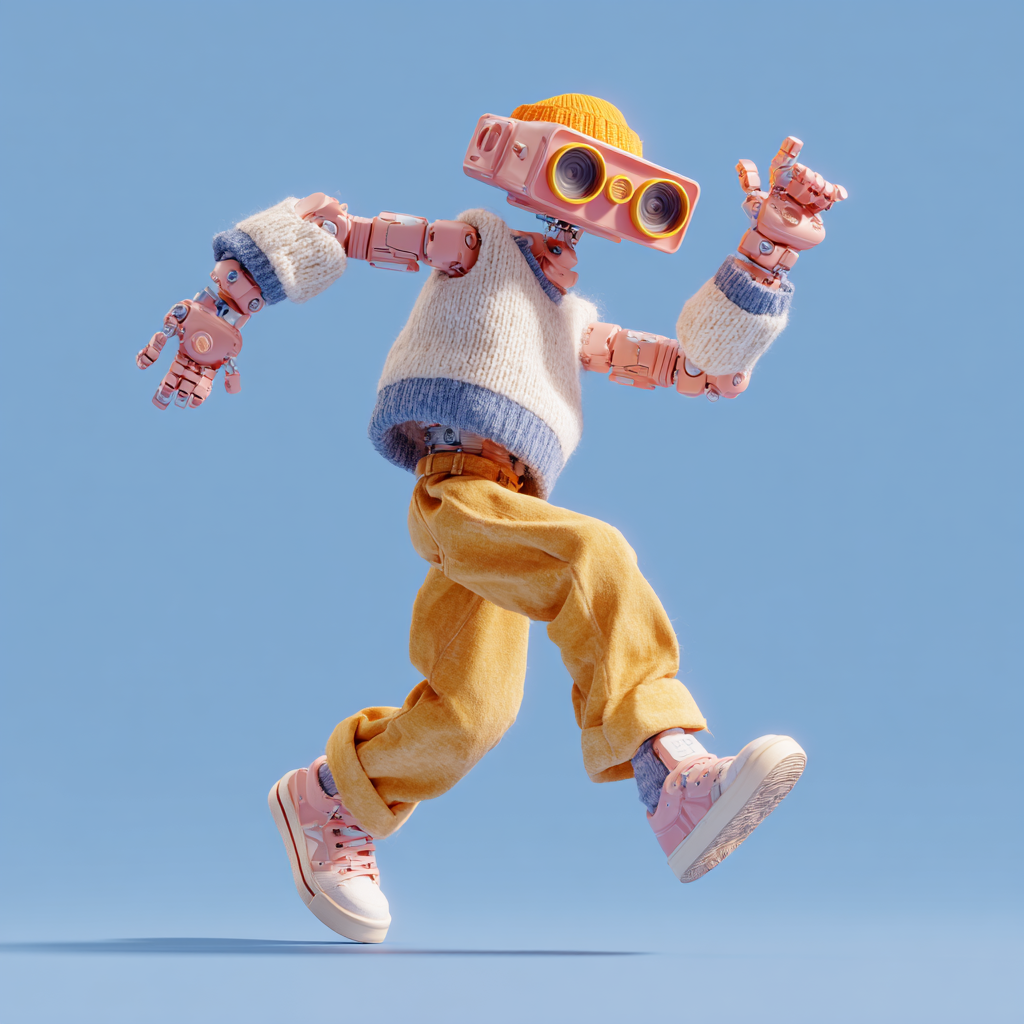 **入力動画** ### 2. モデルのダウンロードリンク **diffusion\_models** * [Wan2\_2-Animate-14B\_fp8\_e4m3fn\_scaled\_KJ.safetensors](https://huggingface.co/Kijai/WanVideo_comfy_fp8_scaled/resolve/main/Wan22Animate/Wan2_2-Animate-14B_fp8_e4m3fn_scaled_KJ.safetensors) — Kijai のリポジトリから提供されるモデル * [wan2.2\_animate\_14B\_bf16.safetensors](https://huggingface.co/Comfy-Org/Wan_2.2_ComfyUI_Repackaged/resolve/main/split_files/diffusion_models/wan2.2_animate_14B_bf16.safetensors) — 元のモデル重み **clip\_visions** * [clip\_vision\_h.safetensors](https://huggingface.co/Comfy-Org/Wan_2.1_ComfyUI_repackaged/resolve/main/split_files/clip_vision/clip_vision_h.safetensors) **loras** * [lightx2v\_I2V\_14B\_480p\_cfg\_step\_distill\_rank64\_bf16.safetensors](https://huggingface.co/Kijai/WanVideo_comfy/resolve/main/Lightx2v/lightx2v_I2V_14B_480p_cfg_step_distill_rank64_bf16.safetensors) — 4ステップ高速化対応の LoRA **vae** * [wan\_2.1\_vae.safetensors](https://huggingface.co/Comfy-Org/Wan_2.2_ComfyUI_Repackaged/resolve/main/split_files/vae/wan_2.1_vae.safetensors) **text\_encoders** * [umt5\_xxl\_fp8\_e4m3fn\_scaled.safetensors](https://huggingface.co/Comfy-Org/Wan_2.1_ComfyUI_repackaged/resolve/main/split_files/text_encoders/umt5_xxl_fp8_e4m3fn_scaled.safetensors) ``` ComfyUI/ ├───📂 models/ │ ├───📂 diffusion_models/ │ │ ├─── Wan2_2-Animate-14B_fp8_e4m3fn_scaled_KJ.safetensors │ │ └─── wan2.2_animate_14B_bf16.safetensors │ ├───📂 loras/ │ │ └─── lightx2v_I2V_14B_480p_cfg_step_distill_rank64_bf16.safetensors │ ├───📂 text_encoders/ │ │ └─── umt5_xxl_fp8_e4m3fn_scaled.safetensors │ ├───📂 clip_visions/ │ │ └─── clip_vision_h.safetensors │ └───📂 vae/ │ └── wan_2.1_vae.safetensors ``` ### 3. カスタムノードのインストール 以下のワークフローファイルをダウンロードし、ComfyUI にドラッグ&ドロップして読み込んでください。すでに [ComfyUI-Manager](https://github.com/Comfy-Org/ComfyUI-Manager) をインストール済みの場合、「`Install missing nodes`」ボタンをクリックするだけで不足ノードを自動インストールできます。 以下のカスタムノードをインストールする必要があります: * [ComfyUI-KJNodes](https://github.com/kijai/ComfyUI-KJNodes) * [ComfyUI-comfyui\_controlnet\_aux](https://github.com/Fannovel16/comfyui_controlnet_aux) カスタムノードのインストール方法が不明な場合は、[カスタムノードのインストール方法](/installation/install_custom_node) をご参照ください。 ### 4. ワークフロー操作手順 Wan2.2 Animate には「Mix」と「Move」の2つのモードがあります。 * **Mix**: 参照画像のキャラクターで、入力動画内のキャラクターを置換します。 * **Move**: 入力動画のキャラクターの動き・表情をもとに、参照画像のキャラクターをアニメーション化します(Wan2.2 Fun Control と同様の動作)。 #### 4.1 Mix モード 0. 初回実行時は、VRAM 不足を防ぐため、動画生成サイズを小さめに設定してください。また、`WanAnimateToVideo` の制限により、出力動画の幅または高さは16の倍数である必要があります。
1. すべてのモデルが正しく読み込まれていることを確認してください。
2. 必要に応じてプロンプトを更新してください。
3. 参照画像をアップロードしてください。この画像のキャラクターが、置換後のターゲットキャラクターになります。
4. 初回実行時は、当該ドキュメントで提供している動画を入力動画としてご利用いただけます。[comfyui\_controlnet\_aux](https://github.com/Fannovel16/comfyui_controlnet_aux) の **DWPose Estimator** ノードが、入力動画を姿勢および顔の制御用動画に前処理します。
5. `Points Editor` は [KJNodes](https://github.com/kijai/ComfyUI-KJNodes/) 由来のノードです。デフォルトでは入力動画の最初のフレームを読み込みません。ワークフローを一度実行するか、手動で最初のフレームをアップロードしてください。
* `Points Editor` ノードの下部には、このノードの動作方法および編集方法に関する説明を追加していますので、そちらをご参照ください。
6. 「Video Extend」グループは、出力動画の長さを延長するためのものです。
* 各 `Video Extend` は、さらに77フレーム(約4.8125秒)を延長します。
* 入力動画が5秒未満の場合は、必要ない場合があります。
* より長い延長が必要な場合は、複数回コピー&ペーストを行い、前の `Video Extend` の `batch_images` 出力を次の `Video Extend` の入力に接続し、同様に `video_frame_offset` も接続してください。
7. `Run` ボタンをクリックするか、ショートカットキー `Ctrl (Cmd) + Enter` を押して動画生成を実行してください。
#### 4.2 Move モード
Wan2.2 Animate ワークフローでは、[サブグラフ](/interface/features/subgraph) を活用しています。Move モードへの切り替え手順は以下の通りです:
0. 初回実行時は、VRAM 不足を防ぐため、動画生成サイズを小さめに設定してください。また、`WanAnimateToVideo` の制限により、出力動画の幅または高さは16の倍数である必要があります。
1. すべてのモデルが正しく読み込まれていることを確認してください。
2. 必要に応じてプロンプトを更新してください。
3. 参照画像をアップロードしてください。この画像のキャラクターが、置換後のターゲットキャラクターになります。
4. 初回実行時は、当該ドキュメントで提供している動画を入力動画としてご利用いただけます。[comfyui\_controlnet\_aux](https://github.com/Fannovel16/comfyui_controlnet_aux) の **DWPose Estimator** ノードが、入力動画を姿勢および顔の制御用動画に前処理します。
5. `Points Editor` は [KJNodes](https://github.com/kijai/ComfyUI-KJNodes/) 由来のノードです。デフォルトでは入力動画の最初のフレームを読み込みません。ワークフローを一度実行するか、手動で最初のフレームをアップロードしてください。
* `Points Editor` ノードの下部には、このノードの動作方法および編集方法に関する説明を追加していますので、そちらをご参照ください。
6. 「Video Extend」グループは、出力動画の長さを延長するためのものです。
* 各 `Video Extend` は、さらに77フレーム(約4.8125秒)を延長します。
* 入力動画が5秒未満の場合は、必要ない場合があります。
* より長い延長が必要な場合は、複数回コピー&ペーストを行い、前の `Video Extend` の `batch_images` 出力を次の `Video Extend` の入力に接続し、同様に `video_frame_offset` も接続してください。
7. `Run` ボタンをクリックするか、ショートカットキー `Ctrl (Cmd) + Enter` を押して動画生成を実行してください。
#### 4.2 Move モード
Wan2.2 Animate ワークフローでは、[サブグラフ](/interface/features/subgraph) を活用しています。Move モードへの切り替え手順は以下の通りです:
 Move モードに切り替えるには、`Video Sampling and output(Subgraph)` ノードから `background_video` および `character_mask` の入力接続を解除してください。